
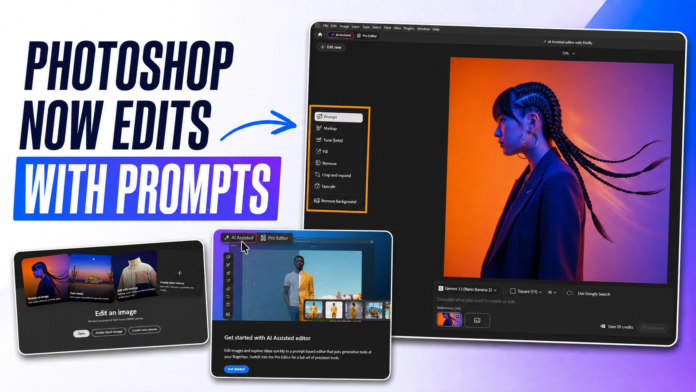
Adobe is turning Photoshop into something much closer to a conversational AI image editor.
The company has introduced AI Assisted Editor, an optional Photoshop workspace where users can edit images using natural-language instructions instead of navigating dozens of tools, panels and menus. Adobe also added AI Markup, which lets you draw, circle or annotate the exact part of an image you want the AI to change.
The update matters because it addresses one of Photoshop’s biggest barriers: knowing how to perform an edit. Instead of learning several manual steps, a user can describe the desired result and let Photoshop create it as a new, non-destructive layer.
Here is what the new Photoshop AI experience does, how to access it, and where traditional editing skills still matter.
What is Photoshop AI Assisted Editor?
Photoshop AI Assisted Editor is a simplified, prompt-first editing environment available in beta. It sits alongside Photoshop’s traditional interface, which Adobe now refers to as the Pro Editor.
It does not remove the existing Photoshop workspace. Users can choose the AI-assisted experience for quick changes or continue using the full Pro Editor when they need detailed layer, selection, masking and colour controls.
Inside AI Assisted Editor, users can access several familiar and generative features from one streamlined interface:
- Prompt to Edit: Describe a complete image transformation in natural language.
- Remove Background: Separate a subject and erase the background.
- Generative Expand: Extend the canvas and generate matching surroundings.
- Remove Tool: Erase unwanted people, objects or distractions.
- Generative Fill: Add, replace or remove image content with a prompt.
- Generative Upscale: Increase resolution while preserving visual detail.
- AI Markup: Draw and annotate directly on an image to guide precise changes.
Prompt to Edit is also available from the Contextual Task Bar in Pro Editor, so experienced Photoshop users do not have to leave their usual workspace.
AI Markup is the most interesting new feature
Text prompts can be ambiguous. If you ask an image model to “add a lamp beside the sofa,” it may place the lamp on the wrong side, make it too large or alter other parts of the room.
AI Markup reduces that uncertainty by combining visual instructions with text.
You can draw a rough shape where an object should appear, highlight an area that needs recolouring, add an arrow to communicate direction or attach a short instruction to a particular part of the image. Photoshop then uses both the markup and prompt to generate the edit.
For example, you could:
- Circle a shirt and write, “Change this to dark green.”
- Sketch a rectangular frame on a wall and write, “Add a minimalist abstract painting here.”
- Draw an arrow beside a product and write, “Move the shadow in this direction.”
- Mark the sky and write, “Replace this area with a soft golden-hour sky.”
Adobe says AI Markup creates the result on a new generated layer. That means the original image remains intact and the change can be hidden, compared or removed later.
How to use AI Markup in Photoshop on the web
AI Markup is currently a public beta feature, so its interface and results may change.
- Open Photoshop on the web and upload an image.
- Select AI Markup (beta) from the Contextual Task Bar.
- Click an area to add an annotation and describe the change.
- Add more annotations if different parts of the image require separate edits.
- Use the drawing tools to sketch shapes or highlight exact regions.
- Add a global prompt if you want to change the overall look of the image.
- Select Generate.
- Compare the generated variations and choose Keep on the best result.
The accepted result appears as a separate generated layer, allowing you to continue refining the composition without permanently changing the source image.
Five prompts worth trying
Good AI editing prompts describe the target, the change and what must remain untouched. These examples can be adapted to product photos, portraits and social-media creatives.
1. Product photography
Replace the background with a warm beige studio wall and soft surface shadow. Keep the product, logo, proportions, label text and packaging colours unchanged.
2. Remove a distraction
Remove the person in the marked area and reconstruct the pavement and background naturally. Do not alter the main subject.
3. Social-media resize
Extend the background vertically for a 9:16 composition. Keep the subject centred and preserve the original lighting and perspective.
4. Interior visualization
Add a small indoor plant inside the sketched area. Match the room’s camera angle, warm lighting, scale and existing shadows.
5. Controlled portrait edit
Change only the jacket colour to navy blue. Preserve the person’s face, skin texture, hairstyle, pose, body shape and background exactly.
The last sentence in each prompt acts as a constraint. It tells the model what it should protect while performing the edit.
Other important Photoshop updates
AI Assisted Editor is part of a larger Photoshop update focused on easier editing and more control.
Instruct Edit with Masks
Powered by Firefly Image 5, this feature combines masks with natural-language instructions. A user can mask an area and describe the desired change while Photoshop protects the unmasked portions of the image.
This is particularly useful when faces, logos, product labels or brand assets must remain unchanged.
Light Adjustment Layer
Photoshop now offers a non-destructive Light Adjustment Layer with controls for exposure, contrast, highlights, shadows, whites and blacks. It provides a more accessible way to make broad lighting corrections without permanently changing the image.
Dynamic Text, Shapes and Paths
Dynamic Text can follow custom shapes and paths, reducing the manual work required to fit typography around curves and freeform layouts.
Adobe Stock inside Photoshop
A new dockable Stock panel allows users to search, preview and use Adobe Stock assets without constantly switching between Photoshop and a browser.
AI Assisted Editor vs traditional Photoshop
| Task | AI Assisted Editor | Pro Editor |
|---|---|---|
| Quick object removal | Faster for most users | More precise manual control |
| Background replacement | Easy with a prompt | Better for complex edge refinement |
| Image expansion | Simple and fast | Useful for manually directed compositing |
| Product identity protection | Depends on prompt and masking | Stronger with careful selections and layers |
| Exact typography | Limited generative reliability | Best choice for final text work |
| Colour-critical work | Useful for exploration | Better for professional colour control |
| Beginner accessibility | Excellent | Steeper learning curve |
AI Assisted Editor is best viewed as a faster route to a first result—not a complete replacement for professional retouching.
What are the limitations?
The new tools can shorten editing time, but users should expect familiar generative-AI problems.
- Generated objects may have incorrect geometry, reflections or shadows.
- Small text and product labels can become distorted.
- Faces or hands may change when a prompt is too broad.
- Precise brand colours may require manual correction.
- Results can vary across repeated generations using the same instruction.
- Beta features may not be available to every account, device or region at the same time.
For client work, always zoom in and check faces, fingers, logos, packaging text, edges, reflections and repeated patterns before exporting.
Is Photoshop AI Assisted Editor worth using?
Yes especially for creators, marketers, small businesses and beginners who need common edits without learning a complicated workflow first.
AI Markup is the standout feature because it offers something text-only editors often lack: spatial direction. Being able to show the AI where an edit belongs can reduce repeated prompting and make results more predictable.
Professional designers are unlikely to abandon the Pro Editor. Instead, the most effective workflow will combine both experiences: use prompts and markup to generate or explore quickly, then use masks, adjustment layers and manual tools for the final polish.
Photoshop’s advantage is no longer just that it has generative AI. It is that generative edits can live inside an established, non-destructive layer workflow where users can inspect and refine the result.
Frequently asked questions
Is Photoshop AI Assisted Editor free?
AI Assisted Editor is a beta experience inside Photoshop. Access and usage can depend on the Photoshop plan, account, platform, region and Adobe’s generative-credit rules. Check the feature availability shown in your Adobe account before relying on it for a production workflow.
Is AI Markup available now?
Adobe documents AI Markup as a public beta in Photoshop on the web. Beta availability can change or roll out gradually.
Does AI Assisted Editor replace normal Photoshop?
No. It is an optional workspace. Users can still work in Photoshop’s full Pro Editor, and Prompt to Edit is also available from the Pro Editor’s Contextual Task Bar.
Can Photoshop edit an entire image from one prompt?
Yes. Prompt to Edit can apply broad transformations using natural-language instructions. For controlled changes, AI Markup or Instruct Edit with Masks is safer because it helps protect areas that should remain unchanged.
Are AI edits destructive?
Adobe says Prompt to Edit and AI Markup results are created as generated layers, allowing users to keep the original image and revise or remove the generated result.